Kinetic scroll effects
A photograph dissolves into liquid colour under the visitor's own hand. Kinetic keeps the image present throughout: move the cursor, or drag a finger on a phone, and flow bends its shapes while the colour channels separate at the edges. Stop, and the picture returns to the original photograph within about a second. Scrolling does not change it.
View the live Kinetic demo and move the cursor across the aperture image, or drag a finger over it on a phone, to see it smear and settle. The demo is an exported page; this walkthrough explains how to make your own.
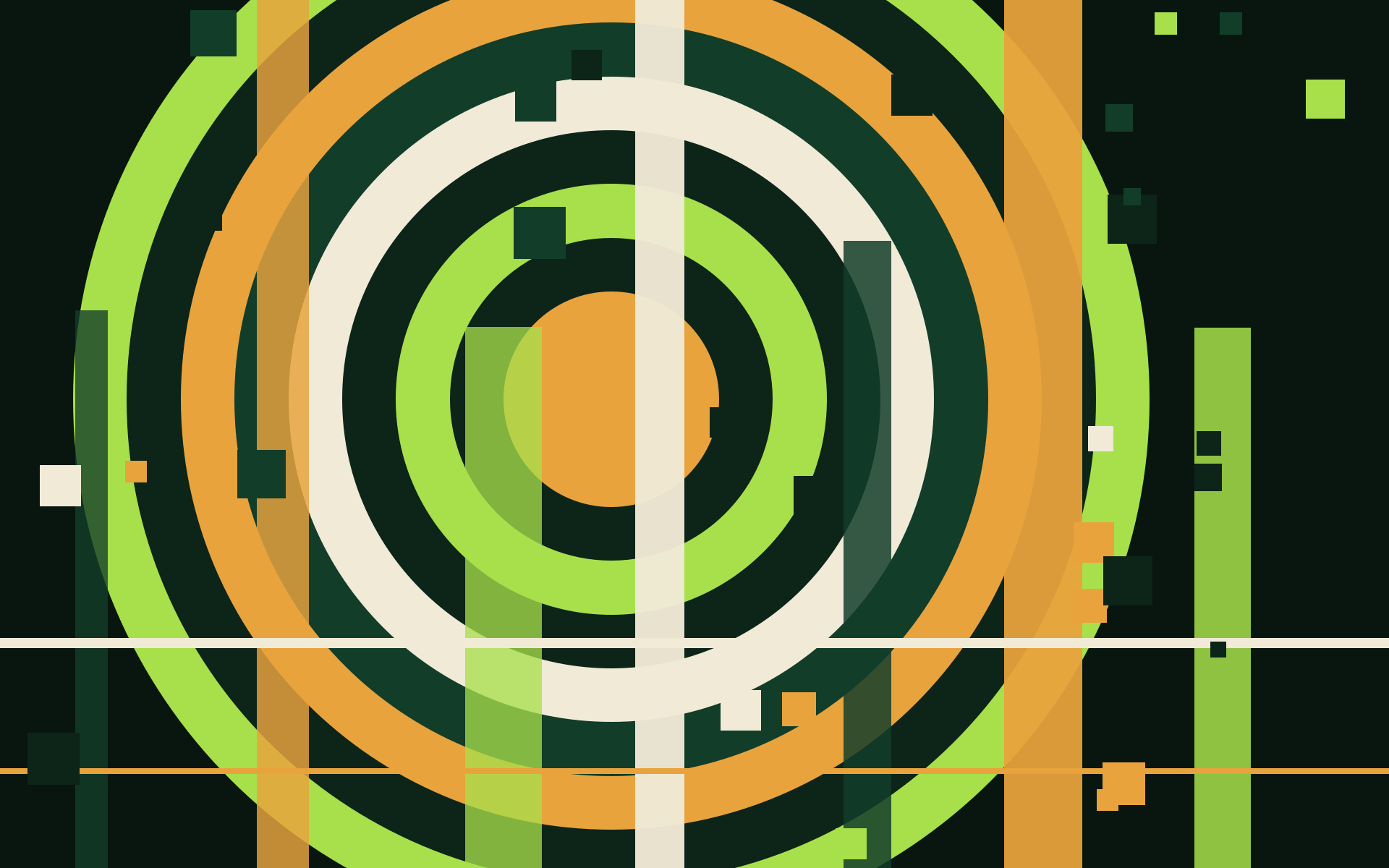
The resolved source image, which is also what the page shows when nobody is touching it. Open the live demo and sweep across it to see these edges flow apart and return.
Choose between Cubes and Kinetic
Cubes assembles an image from separate pieces scattered in depth. Choose it when you want the construction of the picture to be visible. Kinetic treats the image as a continuous surface: it suits a fluid reveal of photography, artwork or a product silhouette. The two are also driven differently. Cubes assembles as the visitor scrolls. Kinetic answers to the pointer — a cursor sweep, or a finger drag on a phone — and scrolling a kinetic page does not change the picture at all. Both use the same Studio and export options, and you can switch styles without losing their settings.
Choose an image with a clear payoff
Start with one subject and a shape you can recognise after distortion: a portrait against a simple background, a product outline, or artwork with bold boundaries. The aperture demo uses rings and blades so you can see the colour separation close around their edges.
Fine print and dense screenshots are harder to read during the reveal. If the image must carry instructions, keep those instructions in the page's text instead. Check the finished frame at phone width: the animation cannot recover detail that is missing from the original image or outside its crop. The image preparation guide covers source quality and file size.
Tune four controls
Flow
Bends and smears the image while it is being worked. Start at the default of 1, lower it to keep the subject more recognisable, or raise it toward 2 for a stronger liquid reveal. At 0 the flow distortion disappears.
Colour split
Separates the red, green and blue channels. The default is 0.35. Lower it for cleaner edges or raise it toward 1 for an offset print effect. Try it on high-contrast boundaries, where the difference is easiest to see.
Pointer drift
Lets the finished picture lean toward the visitor's pointer, from 0 to 1 with a default of 0.5. Set it to 0 to pin the picture square. Test on a phone too, where a finger takes the pointer's place.
Momentum
Stretches the picture along the axis the hand moved, deepens the smear and pulls the colours apart in proportion to how fast the pointer is travelling, from 0 to 1 with a default of 0.5. A fast sweep drags the image with it, and it settles the moment the pointer stops. Set it to 0 to leave the smear answering to movement alone.
Change one control at a time, then sweep the preview and let it settle after each change. Flow and Colour split fade to zero as the pointer comes to rest, so they shape the journey without touching the payoff. Pointer drift and Momentum are the two terms that stay alive over the finished picture, which is what keeps a resolved page answering to the reader. All four read as zero in exports and reduced-motion stills, and all four are zero until a pointer moves.
Make your first Kinetic reveal
- Open Kinetic in the Studio. The button above selects Kinetic and keeps your other saved settings. Both styles remain available under Mosaic → Style.
- Drop in an image. It is processed in your browser; nothing is uploaded and no account is needed. The demo image in the Studio is also a useful starting point.
- Set the framing. Check where your subject sits in the preview before tuning Flow and Colour split. Use the phone preview to catch a crop that only works on a wide screen.
- Work the preview. Sweep the pointer across it and let it settle: the smear at full speed, the return, and the resting photograph. Keep important copy readable throughout, and use a lower Flow value if the subject becomes too difficult to follow.
- Download the result. Open the downloaded page in a browser and check it at the size where you intend to use it.
Export a page or use the effect in an existing site
Download the effect as one HTML file, or choose page mode to build a landing page around it. Page mode derives the palette from your image and offers editorial, technical and poster voices. A composed Kinetic page keeps its scroll track for the copy, and its headline still settles as the page scrolls — only the picture's smear answers to the pointer. The landing page guide explains the page workflow.
For an existing website, copy the generated module and follow the embedding guide. Keep ordinary page text and links available independently of the animation. Exported pages contain no ads or analytics; three.js is their external runtime dependency.
Prefer the command line? This creates the same Kinetic effect:
node cli.mjs photo.jpg --style kinetic --flow 1 --split 0.35The documentation lists all controls, ranges and export options. For a social feed, use the Studio's video export, which drives the effect frame by frame from smear to photograph: a feed cannot run the JavaScript inside an HTML download.
Check motion and the finished page
Visitors who request reduced motion see the resolved image. If WebGL or three.js is unavailable, the generated page falls back to a still image. Review that state as well as the animation: your headline, explanation and call to action should still work when the picture is already resolved.
Want the image to assemble from individual pieces instead? Create with Cubes or see the Cubes reveal.